> For the complete documentation index, see [llms.txt](https://docs.didge.io/home/llms.txt). Markdown versions of documentation pages are available by appending `.md` to page URLs; this page is available as [Markdown](https://docs.didge.io/home/checkpoints/incoming-goods/ig-2-incoming-goods-vision-ai.md).
# IG-2 Incoming Goods Vision Ai
### 1. Purpose and When to Use This
Use the Incoming Goods check to confirm that delivered food products are received at a safe temperature and can be accepted on site.
This check is performed every time food goods are delivered, before they are accepted into storage or production. It ensures temperature compliance is verified and recorded at the point of receipt.
***
### 2. Who Uses This
This checkpoint is typically used by:
* Receiving staff
* Kitchen or stores staff
* Supervisors responsible for goods acceptance
The person receiving the delivery is responsible for recording the temperature on the invoice and submitting a clear image.
***
### 3. What You’ll Need Before You Start
Before starting, make sure you have:
* The delivery invoice or docket
* A calibrated temperature probe or thermometer
* A pen or marker
* Access to CamPro (Didge image camera)
{% tabs %}
{% tab title="Sample 1" %}
{% endtab %}
{% tab title="Sample 2" %}
{% endtab %}
{% tab title="Sample 3" %}
{% endtab %}
{% tab title="Sample 4" %}
{% endtab %}
{% tab title="Sample 5" %}
{% endtab %}
{% endtabs %}
***
### 4. What You’ll See
When completing the Incoming Goods check, you will see:
* Take image button on CamPro. That's it.
You do not need to manually enter temperature, product, or supplier details. These are extracted automatically from the image.
***
### 5. Standard Workflow
1. Receive the goods and check the product temperature
2. Write the temperature directly on the invoice or docket
3. Circle the temperature so it is clearly visible
4. If multiple products are listed:
* Mark the sampled product with an asterisk (\*)
5. If the goods are hard frozen, write “HF” instead of a number
6. If the delivery is being rejected, write “Reject” clearly on the docket
7. Use CamPro to take a clear photo of the invoice
8. Submit the image to complete the check
***
### 6. Decision Points and Exceptions
The system automatically evaluates the image and applies the following rules:
* “Reject” written on the docket
→ The delivery is treated as rejected and a corrective action is triggered
* No temperature written on the docket
→ The check is marked non-compliant and triggers a corrective action
* Temperature greater than 5°C for chilled goods
→ The check is marked non-compliant and triggers a corrective action
* “HF” (Hard Frozen) written on the docket
→ The delivery is treated as compliant
* Unclear or unreadable image
→ Retake the photo before submitting
***
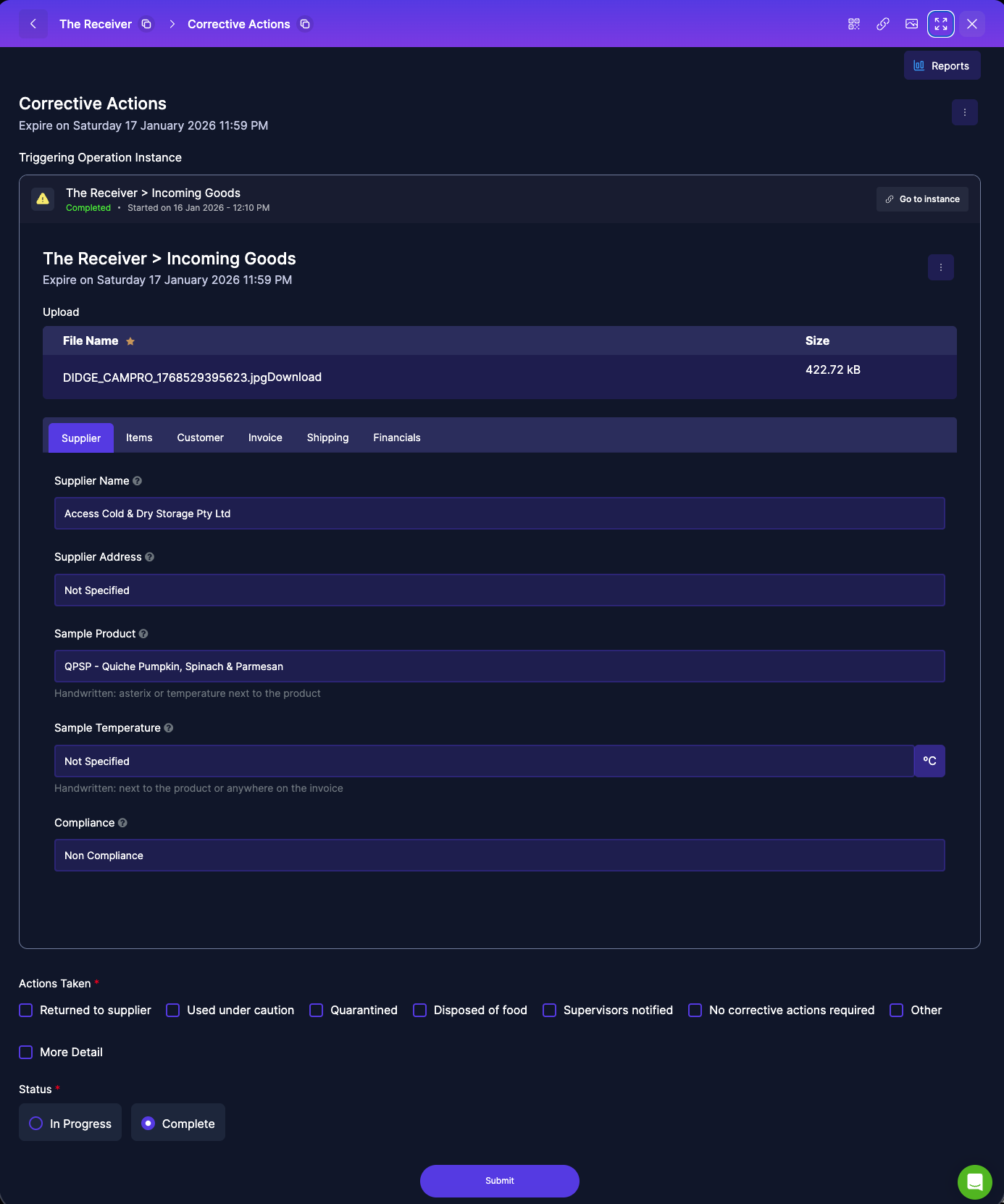
### 7. Corrective Actions
A corrective action flow is triggered automatically when:
* “Reject” is written on the invoice
* No temperature is recorded
* The recorded temperature is above acceptable limits
When this occurs:
* The delivery is flagged for follow-up
* The invoice image is retained as evidence
* Users follow their site’s corrective action process, which may include:
* Rejecting the delivery
* Quarantining goods
* Notifying a supervisor or QA team
Corrective actions are completed and tracked in a separate corrective action workflow, linked to this Incoming Goods check.
***
### 8. Validation and Sign-off
* Compliance or non-compliance is determined automatically
* Corrective actions may require review or sign-off by a supervisor or QA role
* Escalation follows site-specific procedures
***
### 9. Records, History, and Reporting (User View)
Users can:
* View completed Incoming Goods checks
* See compliance status and rejection flags
* Access invoice images as supporting evidence
* Track corrective actions linked to non-compliant or rejected deliveries
* Use reports and summaries for audits and reviews (based on permissions)
***
### 10. Troubleshooting and FAQs
I forgot to write the temperature
* The check will be marked non-compliant
* A corrective action will be triggered
The temperature is above 5°C
* Submit the image as normal
* Follow the corrective action process
The delivery was rejected
* Write “Reject” clearly on the docket
* Submit the image — the system records the rejection automatically
The image wasn’t clear
* Retake the photo with better lighting and focus
The upload failed
* Check your network connection
* Retry using CamPro
* Escalate to your supervisor or support team if the issue persists
---
# Agent Instructions
This documentation is published with GitBook. GitBook is the documentation platform designed so that both humans and AI agents can read, navigate, and reason over technical content effectively. Learn more at gitbook.com.
## Querying This Documentation
If you need additional information that is not directly available in this page, you can query the documentation by asking a question.
Perform an HTTP GET request on the following URL with the `ask` and `goal` query parameters:
```
GET https://docs.didge.io/home/checkpoints/incoming-goods/ig-2-incoming-goods-vision-ai.md?ask=&goal=
```
`ask` is the immediate question: it should be specific, self-contained, and written in natural language.
`goal` is what the user is ultimately trying to achieve, the reason they need the answer. Sharing it helps GitBook give you a better, more relevant answer. A goal is most helpful when it describes the outcome the user wants rather than restating the question. For example, with `ask=how do I create an API token`, a goal like `automate deployments from our CI pipeline` lets GitBook tailor the answer to that use case.
The response will contain a direct answer to the question and relevant excerpts and sources from the documentation.
Use this mechanism when the answer is not explicitly present in the current page, you need clarification or additional context, or you want to retrieve related documentation sections.
.png?alt=media&token=c437e2ca-234a-4cae-a34b-12e2d5d06a0e)