> For the complete documentation index, see [llms.txt](https://docs.didge.io/home/llms.txt). Markdown versions of documentation pages are available by appending `.md` to page URLs; this page is available as [Markdown](https://docs.didge.io/home/thermal-imagery-ai/admin/core-functions/didge-set-up/reporting.md).
# Reporting
### Overview
This document outlines the operational flow for image-based submissions within the Didge Platform. Each image captured—whether manually or automatically from a thermal camera—generates a unique operation instance. This instance is automatically processed by the platform’s AI system, with data extracted and populated into defined form fields.
***
### 1. Image Capture → Operation Instance Creation
* Each time an image is taken (from a thermal or standard camera), it triggers the creation of a new operation instance in the Didge Platform.
* The image is either:
* Automatically uploaded via an integration (e.g., IFTTT → Google Drive → Didge), or
* Manually uploaded through a form interface.
* This instance includes:
* The image file (stored in the file upload field)
* All form fields linked to that image, populated via ChatGPT based on their configured prompts (field descriptions)
***
### 2. Automatic AI Processing
* Upon image submission:
* The image is passed to ChatGPT for data extraction
* Each field with a description acts as a query prompt (e.g., “What is the apple type in the image?”)
* The AI returns structured answers, which are automatically inserted into the relevant fields
* This process occurs in the background and requires no manual data entry.
***
### 3. Instance Submission and Reporting
* Once populated, the operation instance is submitted automatically.
* The instance is then processed like any standard Didge submission:
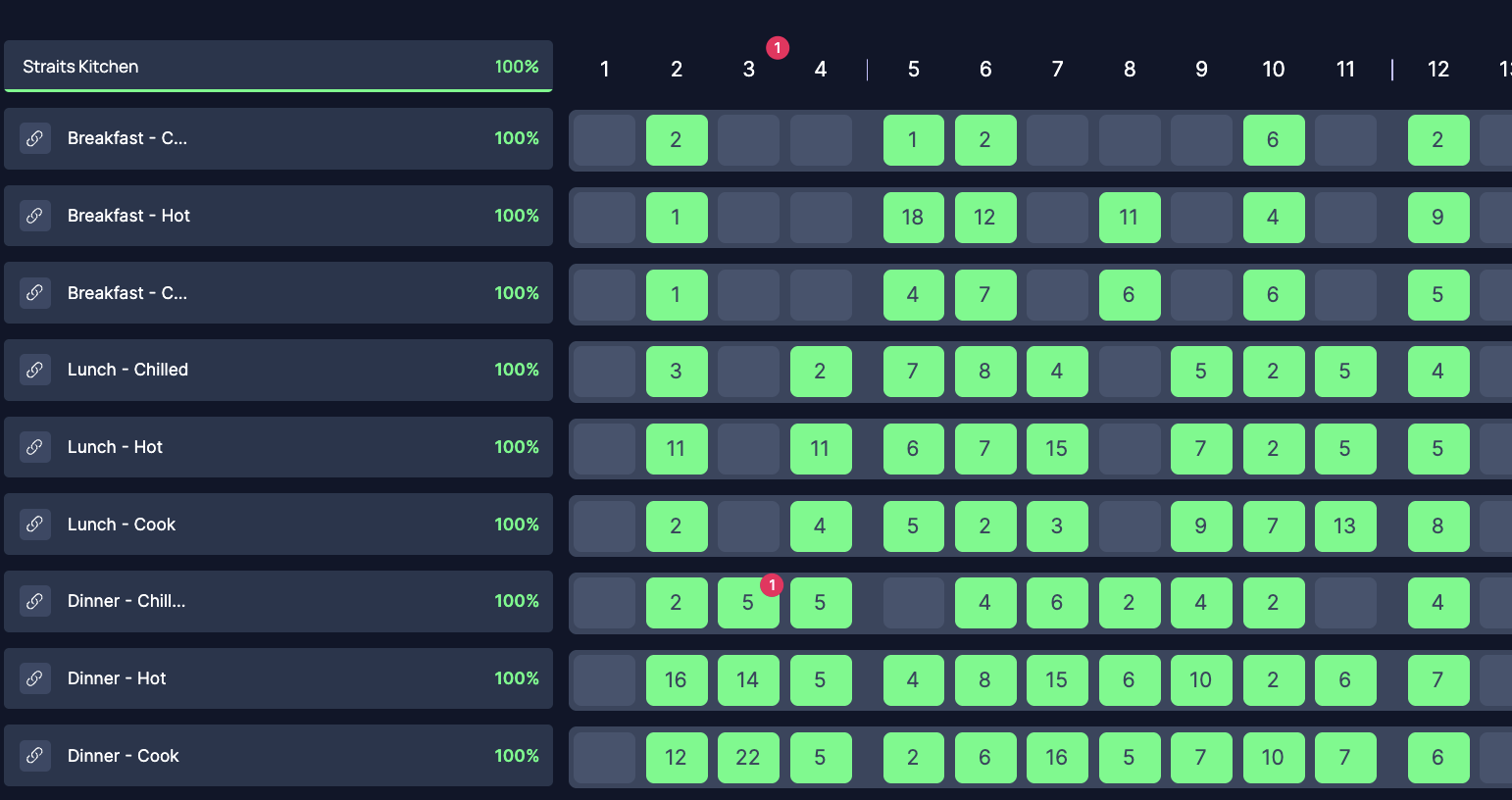
* Tracked in performance dashboards
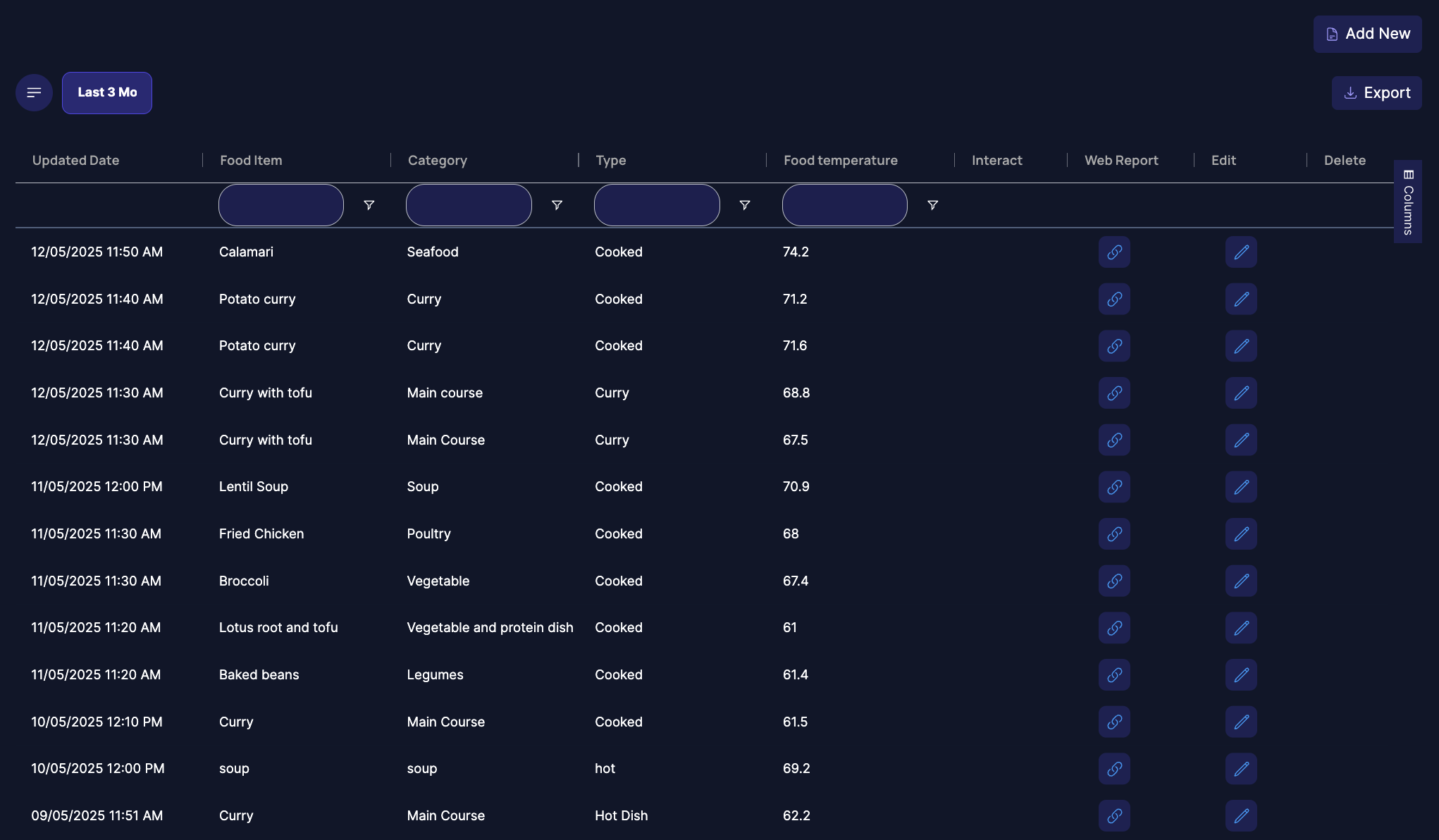
* Visible in data tables
* Exportable for compliance or analytics
***
### 4. Reporting Tools Available
#### a. Performance Report
* Located under the Reporting module.
* Shows a count of operation instances submitted.
* Effectively equals the number of images taken.
* Useful for daily/weekly image volume tracking or KPI monitoring.
#### b. Data Tables
* Aggregated views of field-level data across multiple submissions.
* Useful for analyzing trends, validating AI output, or identifying anomalies.
* Can be filtered by date, field value, image type, or custom tags.
#### c. Instance-Level Reports
* Each operation instance has a unique web-based report.
* Displays:
* Original image
* All extracted data
* Metadata (e.g., timestamp, device, operator)
* Can be exported to:
* PDF
* CSV
* Excel
***
### 5. Export Options
* From any report or table view, data can be exported in multiple formats:
* CSV for raw data
* Excel for structured reporting
* PDF for formatted, printable reports
***
### 6. Thermal vs. Standard Camera Integration
* This image submission and AI extraction workflow works with both:
* Thermal cameras (e.g., FLIR) — includes temperature data
* Standard cameras (e.g., smartphone or tablet) — excludes temperature, but still extracts all visual data
* The workflow remains identical:
* Capture → Upload → Process → Submit → Report
* The only difference is the presence or absence of thermal values in the extracted data.
***
### 7. Key Takeaways
* Every image = one operation instance
* Submission and field population = fully automated
* AI queries are driven by field descriptions
* Data is available instantly in reports, tables, and exports
* System works with or without thermal imaging
***
Would you like this turned into a formatted PDF or embedded in your training site?
---
# Agent Instructions
This documentation is published with GitBook. GitBook is the documentation platform designed so that both humans and AI agents can read, navigate, and reason over technical content effectively. Learn more at gitbook.com.
## Querying This Documentation
If you need additional information that is not directly available in this page, you can query the documentation by asking a question.
Perform an HTTP GET request on the following URL with the `ask` and `goal` query parameters:
```
GET https://docs.didge.io/home/thermal-imagery-ai/admin/core-functions/didge-set-up/reporting.md?ask=&goal=
```
`ask` is the immediate question: it should be specific, self-contained, and written in natural language.
`goal` is what the user is ultimately trying to achieve, the reason they need the answer. Sharing it helps GitBook give you a better, more relevant answer. A goal is most helpful when it describes the outcome the user wants rather than restating the question. For example, with `ask=how do I create an API token`, a goal like `automate deployments from our CI pipeline` lets GitBook tailor the answer to that use case.
The response will contain a direct answer to the question and relevant excerpts and sources from the documentation.
Use this mechanism when the answer is not explicitly present in the current page, you need clarification or additional context, or you want to retrieve related documentation sections.